













Руководство по обновлению беспроводного кластерного дисплея
Wireless Cluster Display Guide for Android & iOS | Ikagoo
Android: Wi-Fi casting + Bluetooth audio (split routing supported). iOS: AirPlay screen mirroring (no split AV). Landscape view recommended for navigation.
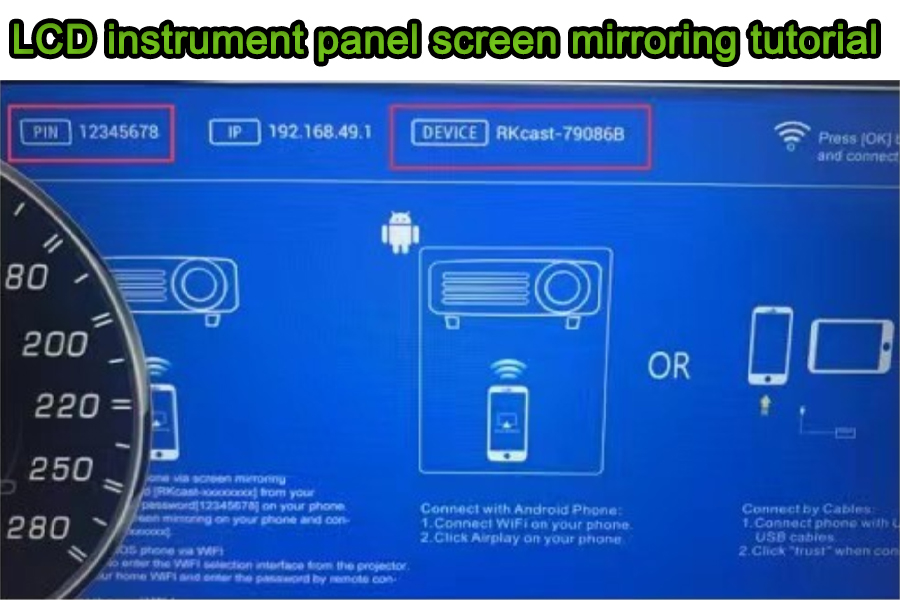
Обзор
What this guide covers
Practical, field-tested steps to mirror your phone screen onto an Ikagoo-supported digital instrument cluster. Focus: video casting over Wi-Fi, с Android Bluetooth audio pairing. iOS AirPlay mirrors video but does not split audio and video paths.
Quick safety note
Use navigation-first layouts in landscape. Avoid watching full-motion videos while driving. Always comply with local regulations on in-car screen usage.
Find Ikagoo digital instrument clusters for Audi & Volkswagen.
Device Compatibility
| Phone Vendor / Feature | Video to Cluster | Audio to Head Unit | Примечания |
|---|---|---|---|
| Android (Huawei Projection / Cast) | Wi-Fi Cast | Bluetooth A2DP (phone → head unit) | Supports split routing (video via Wi-Fi, audio via Bluetooth). |
| Android (Samsung Smart View / Cast) | Wi-Fi Cast | Bluetooth A2DP | Naming differs by model/OS version; steps similar to Huawei. |
| iOS (Apple AirPlay) | AirPlay | No split AV | iOS does not split audio/video during mirroring. |
Android — Wireless Casting Steps (Huawei Example)
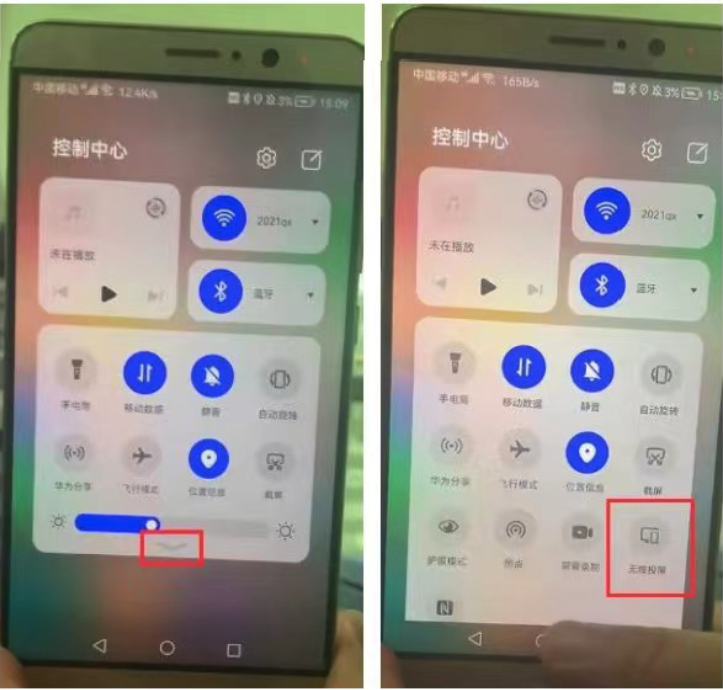
- Open Control Center → Wireless Projection/Cast on the phone.
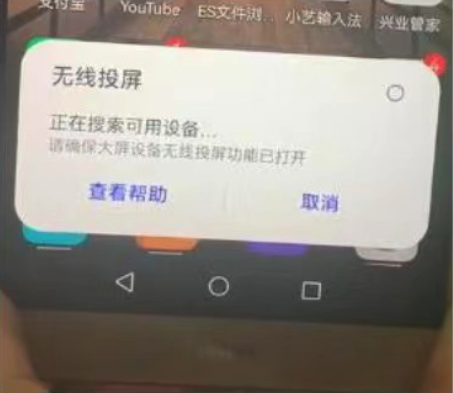
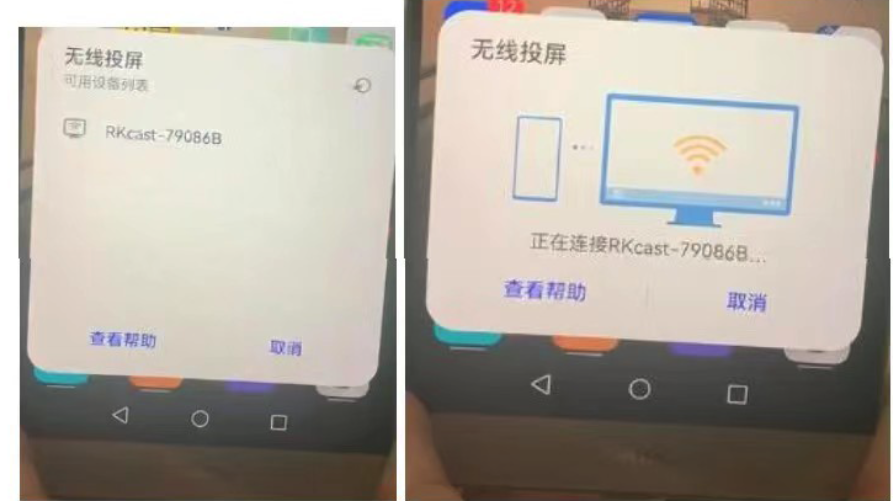
- Wait for device scan; the cluster device will appear in the list.
- Select the cluster device (same name shown on the cluster). For full-width navigation, turn portrait lock off and rotate the phone to landscape.
Official resource: Android
iOS — AirPlay Screen Mirroring Steps
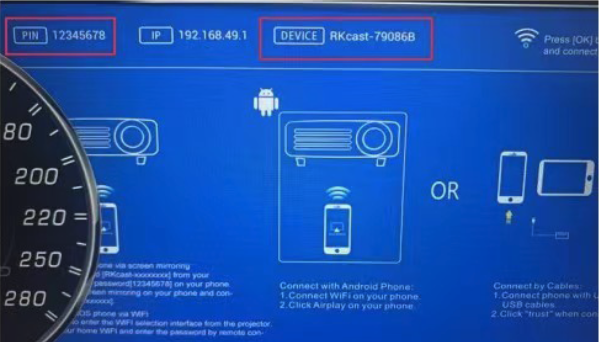
- Find SSID & password on the cluster (cluster Wi-Fi page).
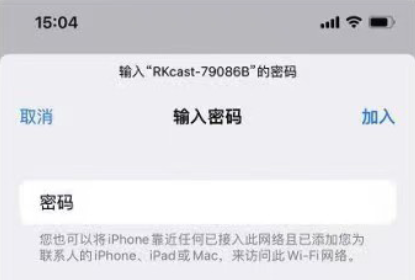
- Join that Wi-Fi on iPhone: Settings → Wi-Fi → select the cluster SSID (password e.g., 12345678).
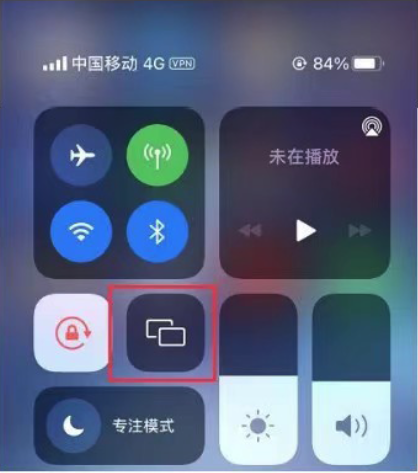
- Open Control Center → Screen Mirroring and tap the device name matching the cluster. For full-width navigation, turn portrait lock off and rotate to landscape.
Official resource: Apple AirPlay
Audio/Video Routing Strategies
Android — Preferred
- Video: Wi-Fi casting to cluster.
- Аудио: Bluetooth A2DP (phone → head unit).
- Result: Stable audio with acceptable video latency for nav/apps.
Android — Fallback
- Video: Wi-Fi casting.
- Audio: 3.5mm AUX / USB audio (if the head unit supports it).
- Use when Bluetooth profiles are blocked by corporate devices.
iOS — Practical
- Video: AirPlay mirroring to cluster.
- Аудио: Same path as video by design (no split AV).
- For rich audio: consider head-unit CarPlay or Android device.
Latency & Quality Optimization
Не
- Mount the cluster/casting antenna unobstructed.
- Use landscape UI for nav; disable portrait lock.
- Close background streaming apps to reduce Wi-Fi contention.
- Keep phone within 1–2 m of the antenna line-of-sight.
Avoid
- Placing antennas behind metal frames or thick dashboards.
- Mirroring 4K video; prefer 720p/1080p for lower latency.
- Auto-rotate off (causes pillar-boxed vertical views).
Troubleshooting Checklist
- Device not found? Toggle phone Wi-Fi; reopen the cluster’s Wi-Fi page. Some phones cache scan results for ~10–20s.
- Mirrors but no audio (Android)? Forget & re-pair Bluetooth; ensure A2DP/Media Audio is enabled in device settings.
- Stuck in vertical? Disable portrait lock; rotate device before launching the nav app.
- Stutter/lag? Shorten distance; remove metal obstructions; close heavy background uploads (e.g., cloud backup).
- iOS audio path? AirPlay mirrors AV together; for separated audio, use CarPlay or switch to Android casting.
Часто задаваемые вопросы
Why is there no sound when casting?
Android: pair phone → head unit via Bluetooth (Media Audio on). iOS: AirPlay does not split audio/video; use a head unit input supported by iOS or switch to Android casting.
Can I watch videos on the cluster?
We recommend using navigation-centric layouts. Always follow local laws and drive attentively.
Will this work with Samsung?
Yes. Names vary (e.g., Smart View / Cast), but steps mirror Huawei’s flow.
Does Android Auto or CarPlay affect this?
They are separate. Casting mirrors your phone screen; CarPlay/Android Auto run as head-unit apps with their own UI and audio paths.
What resolution is recommended?
1080p or 720p usually offers the best balance between clarity and latency in-car.
Why does my screen not fill the cluster?
Disable portrait lock and rotate to landscape before launching apps. Some apps require relaunch after rotation.
How do I improve stability?
Keep a clear line-of-sight, reduce RF interference, minimize concurrent streaming, and ensure the cluster antenna is not blocked by metal.
Does this void my warranty?
Screen casting does not modify vehicle wiring. Refer to your Ikagoo product warranty terms for coverage details.
Glossary & Compliance
| Термин | Значение |
|---|---|
| AirPlay | Apple’s wireless protocol for screen/audio mirroring; iOS does not split audio/video when mirroring. |
| Miracast / Cast | Common Android wireless display protocols used by Huawei/Samsung (naming differs by vendor). |
| A2DP | Advanced Audio Distribution Profile for Bluetooth stereo audio streaming. |
| Split AV | Sending video via Wi-Fi to the cluster while routing audio to the head unit separately (Android supports, iOS mirroring does not). |





Add comment
Для отправки комментария вам необходимо авторизоваться.